Signal
Stop describing the screen. Show it.
When software gets confusing, a screenshot gives AI the context your words leave out. But only if you say what you're trying to do.
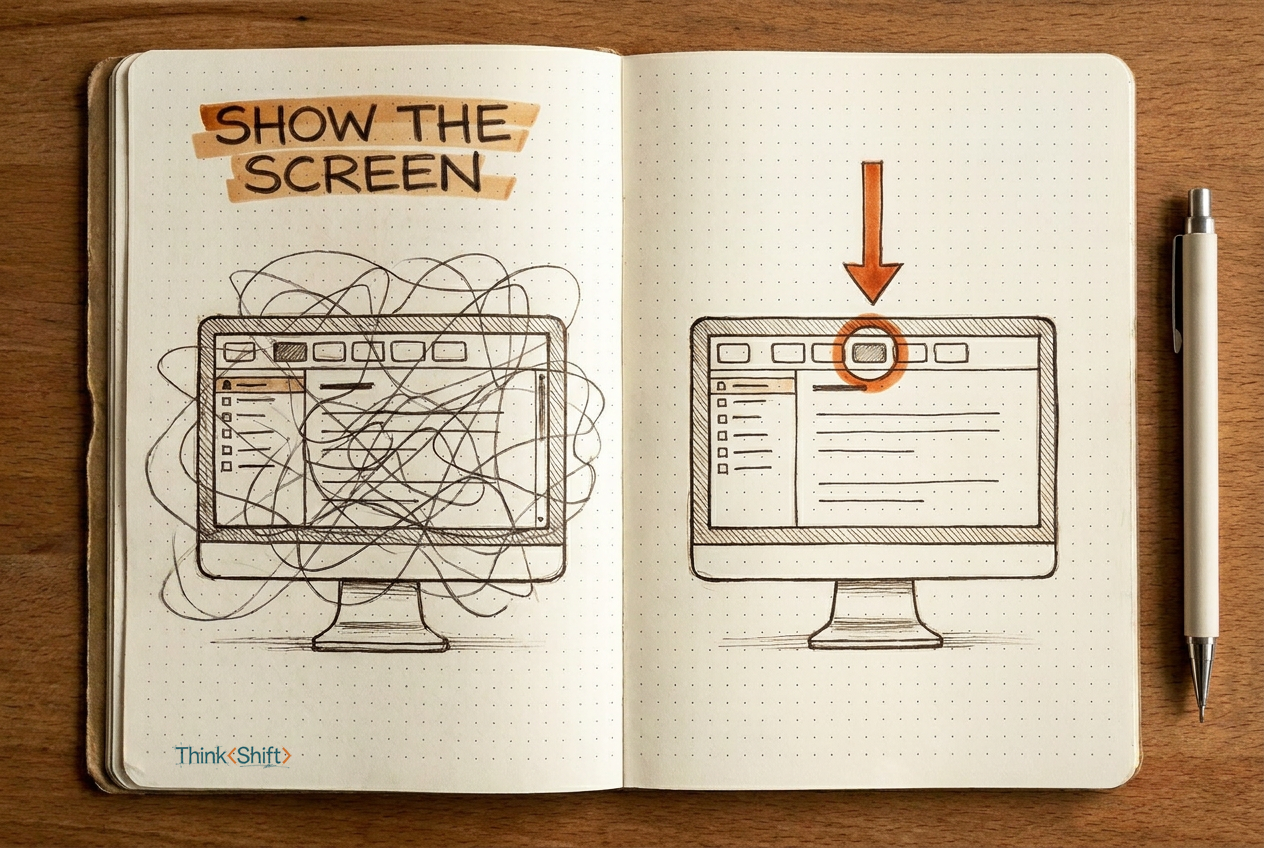
The move Upload a screenshot of the stuck screen, state what you are trying to accomplish, and ask AI to separate what it can see from what it is guessing before suggesting three next steps.
The short version: Describing an unfamiliar screen in words strips out the visual context AI needs most. Upload the screenshot, state your goal, and ask AI to flag its guesses. You get three concrete steps instead of five more minutes of clicking.
You're five minutes into an expense tool you use twice a year. The receipt is attached, the total is right, and somewhere on this screen is a Submit button. You've clicked three tabs. Nothing.
Most people try to describe what they see: "There are some tabs at the top and I think one is a dropdown..." That description strips out the most useful thing you could give AI: what you're actually looking at. Upload a screenshot instead. ChatGPT can read it on every plan, and a picture of the stuck screen tells AI more than three paragraphs trying to name controls you can't find.
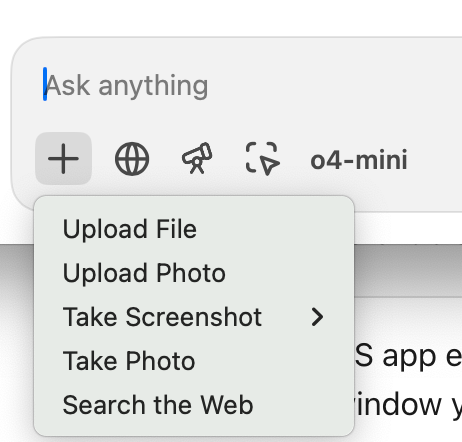
The screenshot is not the whole move. Without your stated goal and an evidence boundary, AI will confidently explain the wrong part of the interface or invent a button that isn't there.
Before you upload, crop or redact anything private: customer names, account numbers, internal data your company hasn't approved for AI. Then pair the image with this:
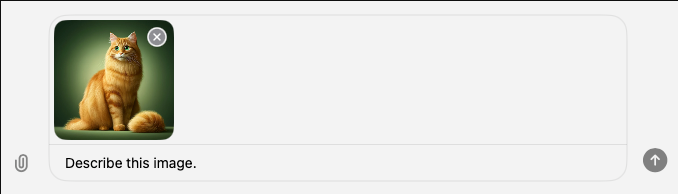
Here is a screenshot of the screen where I am stuck.
I want to [what you are trying to accomplish].

1. Name the application you think this is and list only the controls, labels
   and options visible in the image. Note if you are uncertain about the app.
2. Separate anything you are guessing from what is visible.
3. Suggest three next steps to reach my goal. Label any step that relies on a
   menu, setting or permission you cannot confirm from the screenshot.
Official OpenAI Help Center screenshots, captured September 24, 2026. Interface labels may vary by platform, plan and app version.
Why this helps: You get three concrete steps with the guesses flagged, so you can verify before clicking anything irreversible.
What stays human: Check each step before you click. AI may misread small text, invent a control that doesn't exist on your plan, or miss a permission your account requires.
What to skip this week: The debate over which AI reads images best. Pick the one your company already pays for and try this prompt on the next screen that has you stuck.