
Workarounds
Build a custom GPT for the task you do every week
The trick isn't baking in instructions. It's building the thing to interview you.
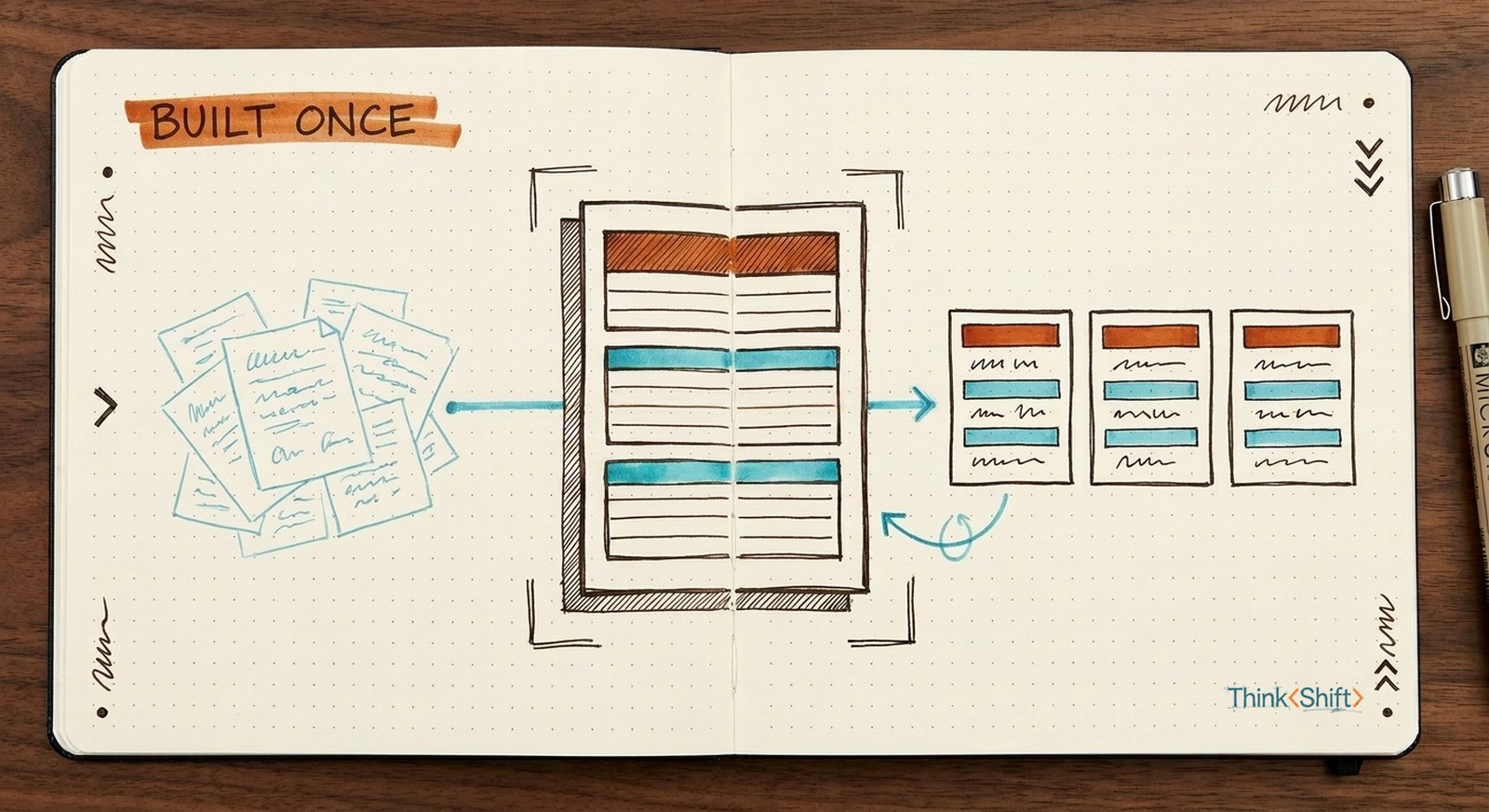
The move Package the weekly task into one reusable tool, and instruct it to ask you for the two or three inputs it needs before it writes.
The short version: The task you redo every week never changes, but the setup starts over every time. Build that one task into its own tool (a custom GPT, a Gem, or a task-focused Project) so you set it up once and reuse it. The move most people miss: build it to interview you. Tell it to ask for the two or three inputs it needs, one at a time, then draft. Now running it isn't re-briefing. It's answering three questions.
The scene
Pick the task you redo every week. Maybe it's the status roundup, or the candidate screen, or the release notes you write from a pile of dev updates. Whatever yours is, you could describe it in your sleep.
You might already use AI for it. But every week you start from zero: open a chat, re-explain what you want, paste the context, nudge the draft until it's right. The task never changes. The setup starts over every time.
Build it to interview you
The fix is to build that one task into its own tool. Two flavors exist: a Project holds a whole area you live in; a single-task tool handles the one thing you repeat. This piece is about the second one. ChatGPT has both. Its single-task one is a custom GPT. Gemini's is a Gem. Claude has only Projects, which you narrow to the one task. Either way, you set it up once and reuse it every week.
Most people set one up with a clever instruction and stop. So every use still starts with a wall of pasted context. It barely saves them anything. The move that actually saves the week is to build it to interview you: in the instructions, tell it to ask for the two or three inputs it needs before it writes.
Now running it isn't re-briefing. It's answering three questions.
Writing those questions is the part that pays off twice. To tell it what to ask, you have to name exactly what you feed this task each week, the stuff you pull together in your head without thinking about it. Most people have never written that down. Building the tool is what makes you.
The setup, once
The whole thing, one time:
- Create a custom GPT (a Gem in Gemini, a task-focused Project in Claude) and name it for the task, like "Weekly Release Notes."
- In the instructions, give it three things:
The job: write my weekly release notes from raw dev updates. The standard: plain and specific, grouped by who it affects, no hype. Before writing, ask me for: what shipped, what's still broken, and who's reading. Ask one at a time, then draft. - Upload two or three of your real past release notes. The examples teach it your shape better than any adjective you could type into the instructions.
That example is for release notes. The shape is the same for any weekly task. Swap in your own job, your own standard, and the two or three inputs yours actually needs. It only saves you time if it fits the work you actually do.
The catch
One catch, specific to the interview. The tool is only as sharp as the questions you tell it to ask. Vague questions confidently pull vague inputs. The draft comes back clean, built on the wrong three facts. So the interview is what to get right: name what this task actually needs from you each week. And whatever it drafts, you still read before it goes out. The tool runs your process. It doesn't own the call.
The next rung
When answering the same questions every week starts to feel like busywork, you're ready for the next rung: connect the tool to your tracker or inbox so it pulls those answers instead of asking. For now, build the one tool and let it do the asking.